Why Time Trackers Fail Without a Desktop App
Browser-based time trackers have a quiet weakness most freelancers only notice after they've lost billable hours.
The Tab You Forgot to Open
Here is how it goes. You sit down, open your project, get to work. Thirty minutes in you remember you were supposed to start the timer. You flip to another tab. The tracker is buried under six others or the browser crashed overnight and your session is gone.
Browser-based tools depend on you being browser-aware at the exact moment you start working. That is a lot to ask when the work itself is what has your attention.
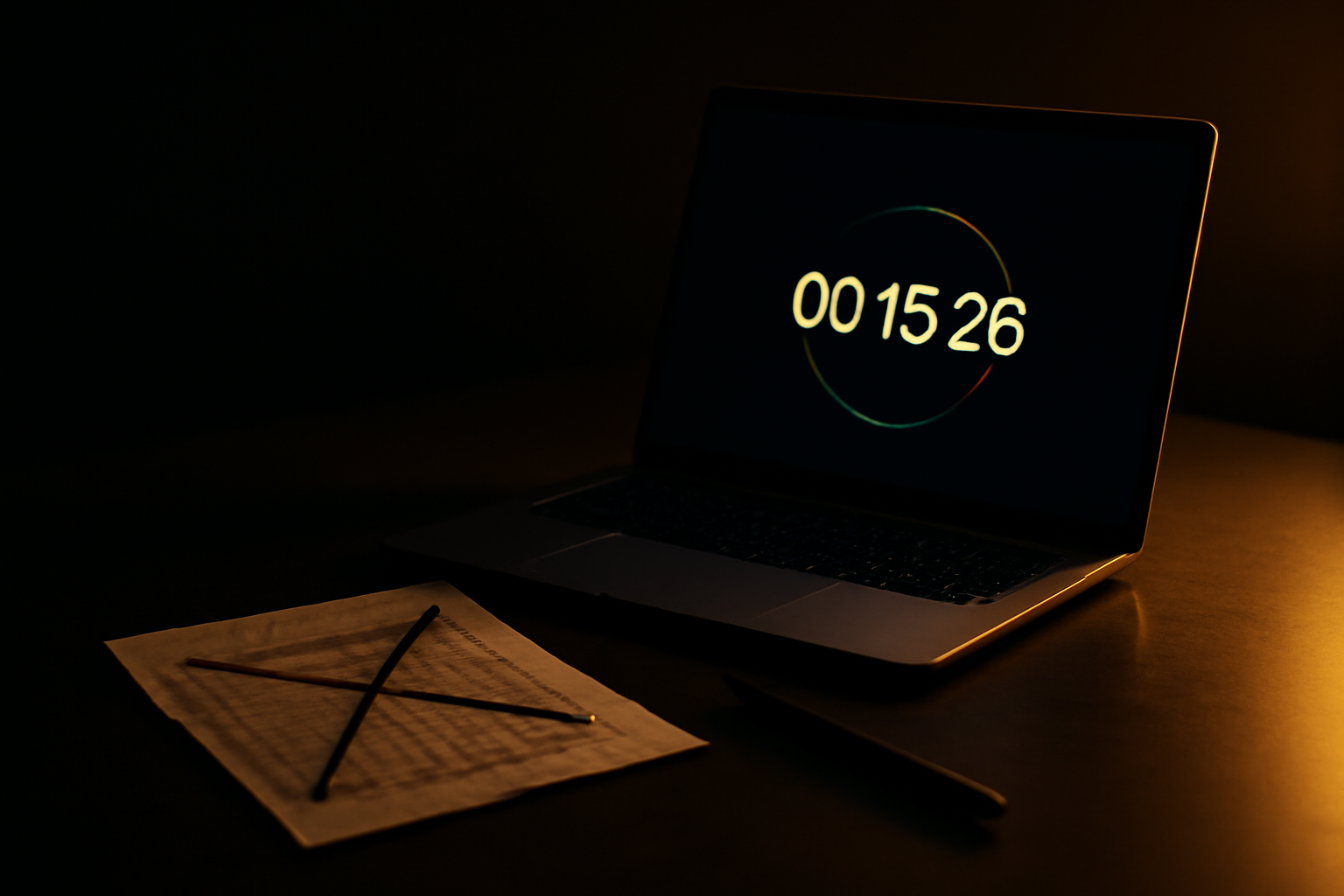
A desktop app lives outside that problem. It is running before your browser opens. The floating timer sits on top of your screen regardless of what application you are in. You see it when you are in Figma. You see it when you are in your code editor. You see it when you are writing a document. There is no tab to find.
What You Lose When the Browser Closes
Browser trackers often store state in the session. If your computer restarts, the browser updates, or you clear your cache, something gets lost. Sometimes it is just a running timer. Sometimes it is settings or an unsaved entry.
Desktop apps write to local storage independently. Your data does not depend on Chrome staying open. That sounds like a small thing until you lose an hour of billable time to a browser update and have to reconstruct it from memory.
Offline Work Is Real Work
Freelancers work on planes. At coffee shops with bad wifi. In basements. Some of the most focused, billable work happens when the internet is not in the picture.
Browser-based trackers range from unreliable to completely broken without a connection. A native desktop app keeps tracking. The data syncs when you reconnect. The client still gets billed for every minute.
Notifications Live in the Wrong Place
If your time tracker is a browser tab, its notifications compete with every other tab notification. Emails, Slack, project management pings. The nudge to start tracking gets buried.
A desktop app can surface a reminder at the OS level. It can show you that no timer is running when you have been active for a while. That kind of prompt actually changes behavior because it shows up where your attention is, not in a tab stack.
Screenshots Require System Access
Automatic screenshots as proof of work are one of the more useful features in a time tracker. Clients who question hours suddenly have less to question when you can show what was on your screen at a given time.
You cannot do that from a browser tab. Screenshots require access to the operating system. That is native app territory. A browser tracker cannot see your screen. It can only see itself.
Time-Trak does this at the OS level. Random screenshots at intervals, stored with the time entry. If a client wants to know what you were doing at 2:40pm on a Tuesday three weeks ago, you can show them.
The Switching Cost Argument Does Not Hold
People stay on browser trackers because they feel lighter. No install, no permissions, just a URL. But that lightness has a cost. You miss time. You reconstruct entries. You lose proof of work. You bill less than you earned.
Installing a desktop app takes five minutes. The time you recover on the first week of accurate tracking pays for that five minutes several times over.
One More Thing About Focus
A floating timer on your desktop does something a browser tab cannot. It makes time visible while you work. You glance at it. You see the clock running. That visibility changes how you treat time.
It is harder to drift into a 20-minute distraction when you can see the meter running on a client project. The timer is not just a record-keeping tool. It is a presence. That presence has value that no browser tab can replicate.
Track your time, bill every minute.
Time-Trak is a native Mac and Windows time tracker with a floating timer, automatic screenshots, and one-click invoicing.
Free during beta.
Download Time-Trak →macOS + Windows · Floating widget · Auto screenshots