How to Track Time When Your Day Has No Fixed Structure
Flexible schedules make time tracking harder to start and easier to abandon. This is how to build a system that works without a routine.
The Myth of the Structured Freelance Day
Most time tracking advice assumes your day has a shape. You start at nine, you work in blocks, you stop at five. Then someone asks you to review a document at seven in the morning. A client in a different timezone needs a call at two. You do a deep work session from ten to noon and then again from eight to ten at night.
If that sounds familiar, you already know that time trackers designed around a normal workday feel like they were built for someone else.
The good news is that the tool does not need to match your schedule. You need to match the tool to a few simple habits.
Start With a Floating Timer You Cannot Ignore
The biggest failure point in unstructured days is that there is no obvious moment to start tracking. You sit down, you start working, and an hour later you realize the timer is not running.
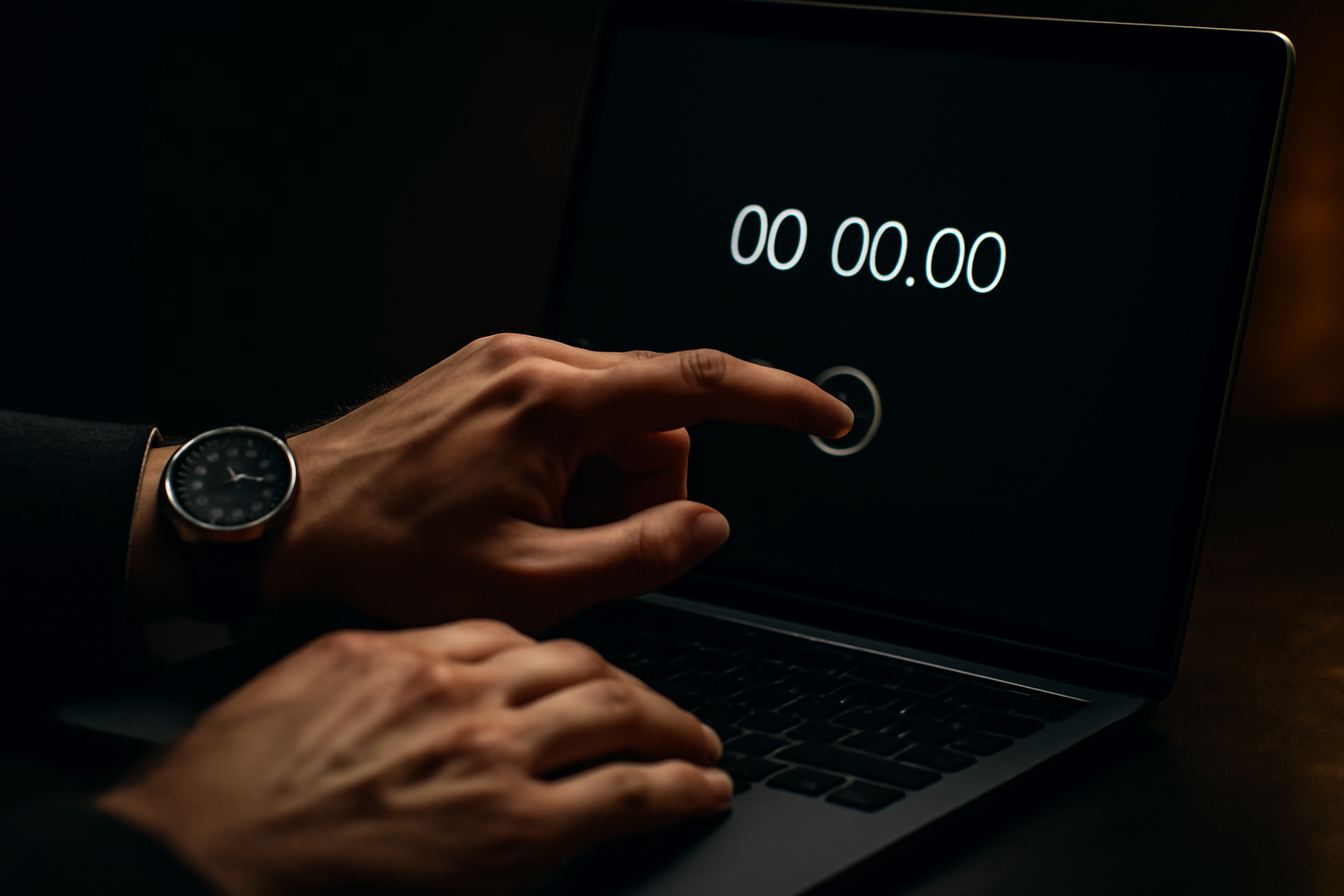
A floating timer widget solves this because it is always visible. It sits on top of whatever else is on your screen. You see it when you open your email. You see it when you pull up a client doc. It is not buried in a tab or minimized in your taskbar.
That visibility creates a natural prompt. You sit down to work, you see the timer is off, you start it. It takes two seconds. The habit builds because the cue is always there.
Use Short, Honest Labels
With an irregular schedule, you might work on three different clients in the same hour. Do not try to log that as one entry. Start and stop the timer as you shift between things.
The entries do not need to be long. "Client A edits" works. "Call prep" works. The goal is that when you look at the log at the end of the day, you can tell what happened. You are not reconstructing from memory, you are reading a record.
This matters more when your day is unstructured because memory is the weakest in irregular schedules. You cannot assume you will remember what you did at two in the afternoon when you are invoicing on Friday.
Let Screenshots Do the Memory Work
Time-Trak takes automatic random screenshots at intervals you set. When your day is fragmented, this is less about accountability and more about context.
You look at a forty-minute entry from Tuesday evening and you cannot remember what you were working on. The screenshot shows a design file for a client. Entry labeled and explained. That context closes the gap between a vague log and a billable entry you can defend.
For anyone working odd hours or across multiple clients in a single sitting, screenshots are the backup memory your schedule cannot provide.
Build a Five-Minute End-of-Session Review Instead of an End-of-Day One
If your days do not have a consistent end point, an end-of-day review will not stick. So do not try to make it one.
Instead, build a habit around sessions. Every time you finish a stretch of work and step away, take two minutes to check the timer is stopped, the entries look right, and anything unbilled is tagged.
Session-based reviews are easier to stick to when your schedule is irregular because they attach to something that always happens: you stopping work. The trigger is the act of stepping away, not a specific time of day.
Keep the Weekly Total Visible
One number helps more than any report: total billable hours this week, updated in real time.
When your day has no structure, it is easy to feel busy and actually be behind. Keeping the weekly total visible tells you the truth. If it is Wednesday and you have six billable hours logged, you know where you stand. If the week ends and you have sixteen hours logged but budgeted for thirty, you know something is off.
The tracker cannot fix an irregular schedule. But it can make sure you always know what that schedule is actually producing.
Track your time, bill every minute.
Time-Trak is a native Mac and Windows time tracker with a floating timer, automatic screenshots, and one-click invoicing.
Free during beta.
Download Time-Trak →macOS + Windows · Floating widget · Auto screenshots